Redesigned deployment page
 Sean DubbFounder, Easel.sh
Each deployment page now opens on what matters for that deployment’s state. The commit title links to GitHub, with the author beside it, and the facts you check most (status, build time, domains, source) sit next to the screenshot.
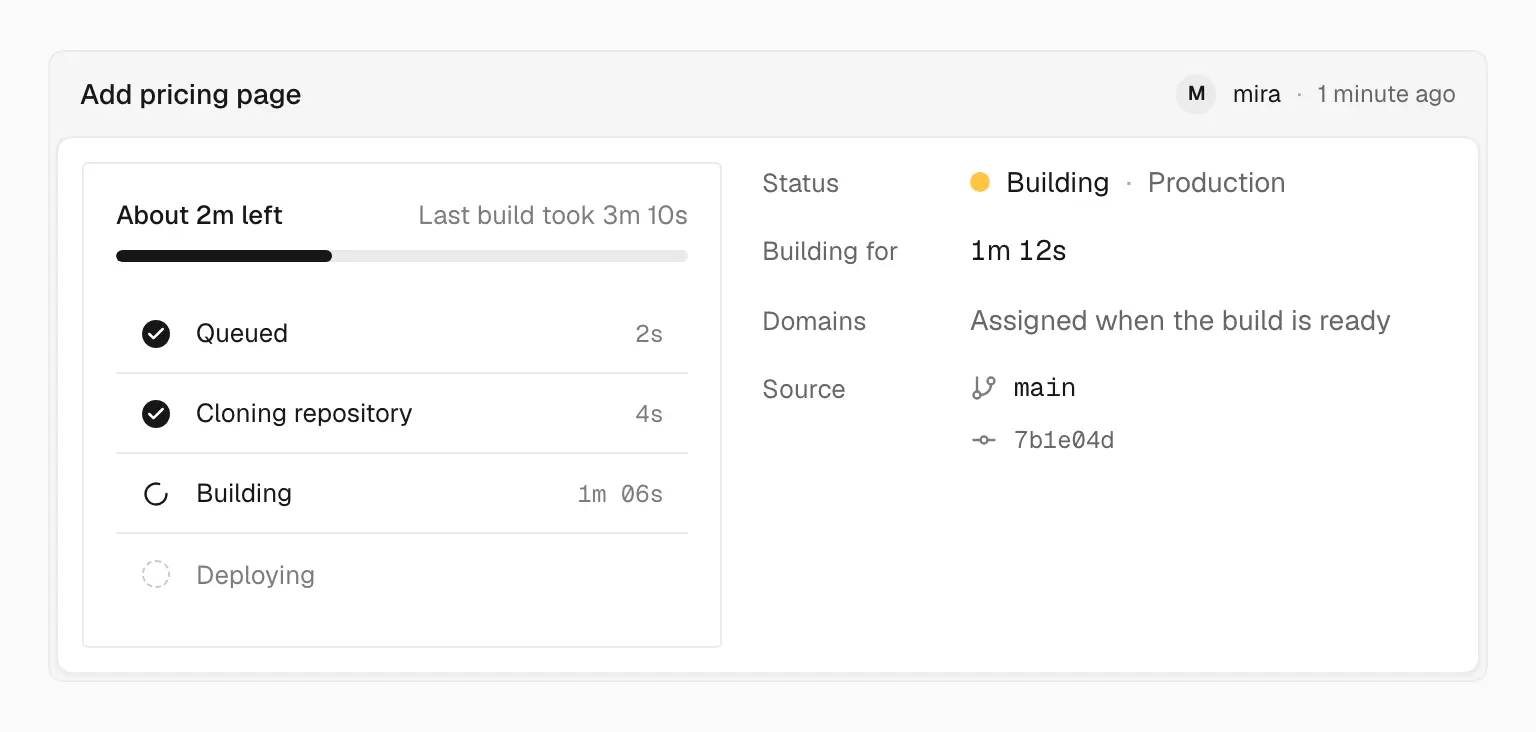
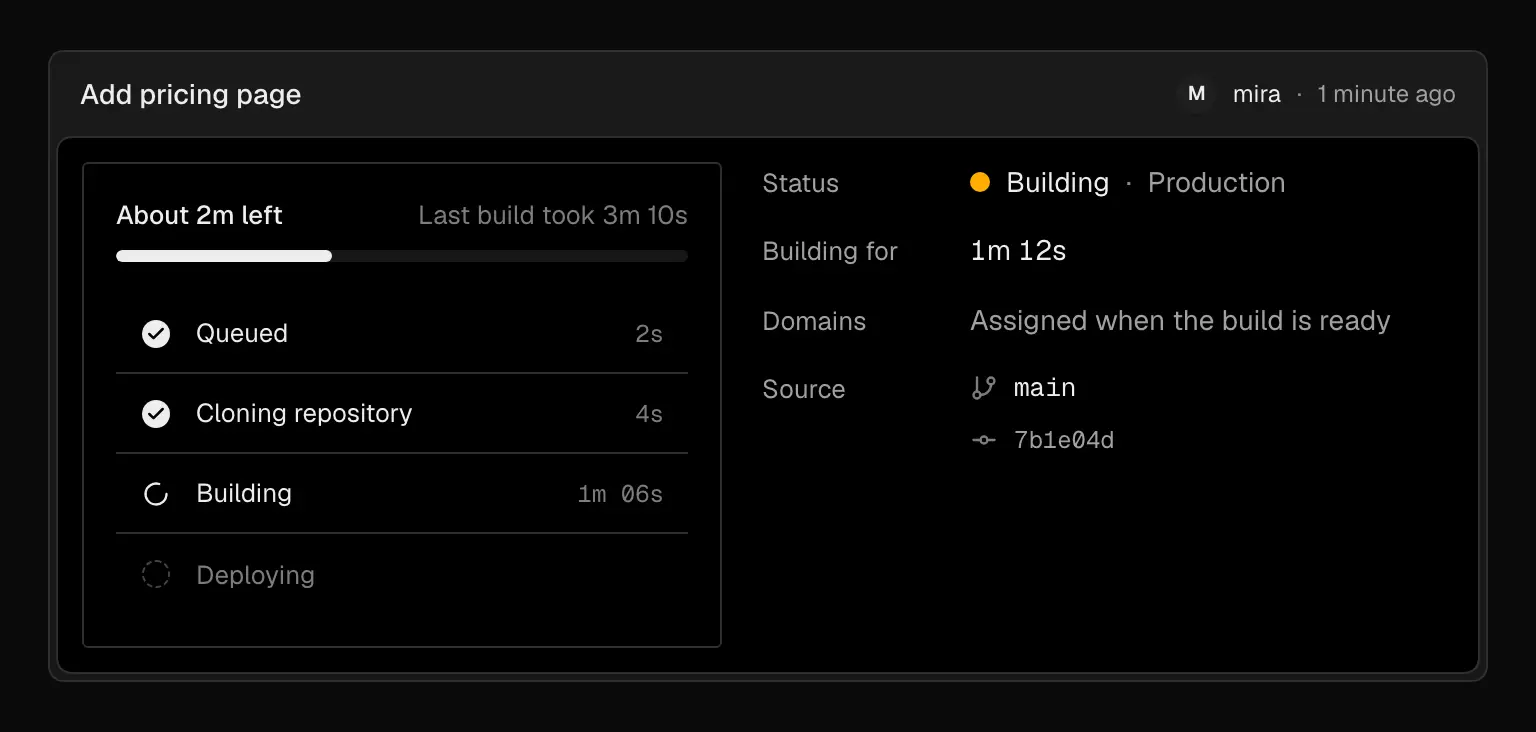
While a deployment builds, its page leads with live stages and how long is left
What you see in each state
- Building: live build stages (Queued, Cloning repository, Building, Deploying), time left based on the last build, and streaming build logs
- Failed: the stage that failed, the error with an excerpt from the log, and a note that production is unaffected
- Preview or staged: the commits ahead of production, with Compare on GitHub
- Production: Since this deploy compares requests, error rate, and p75 latency with the previous deployment, and offers a rollback if errors went up
Below that, Build logs shows error and warning counts and opens by default when a build is running or failed. Output shows the function count and size of a ready deployment.
Actions on every tab
The deployment’s actions sit in the top bar on every tab, so you don’t need to return to the overview first. You see the ones that fit its state: Cancel, Redeploy, Instant rollback, Promote to production, and Visit. The More actions menu adds Clear ISR cache, Copy deployment ID, and Spin down.
Redeploy without cache
For a failed, cancelled, or spun-down deployment, choose Redeploy without cache from More actions to rebuild without the cached dependencies and Turborepo remote cache. On the project overview, the production menu offers Redeploy without build cache.
See Managing deployments for more on inspecting and redeploying.