Redesigned projects page
 Sean DubbFounder, Easel.sh
The projects page is rebuilt so you can see the state of your whole workspace in one place. Failed production builds no longer hide behind the last successful deploy, and the page updates live as deployments run.
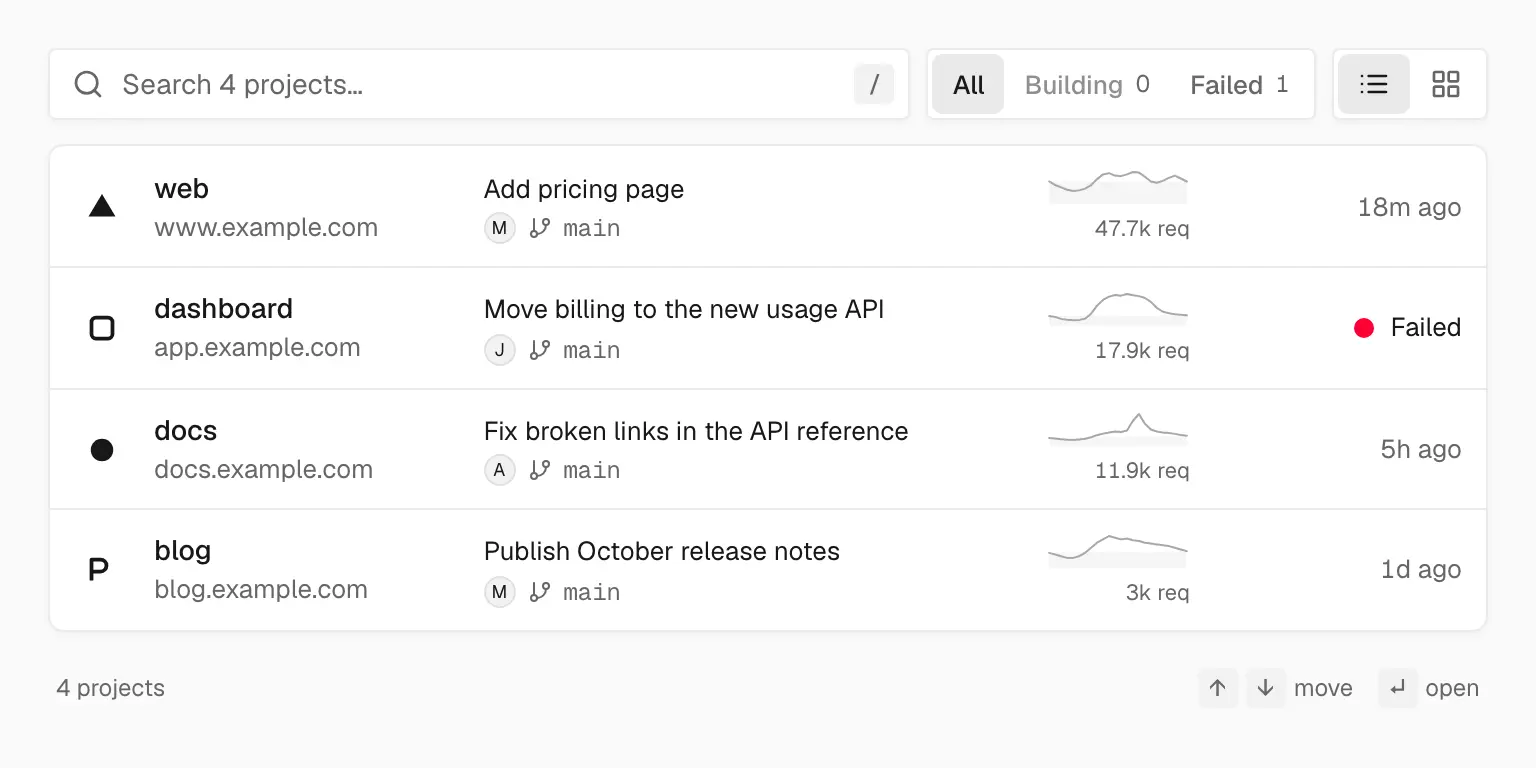
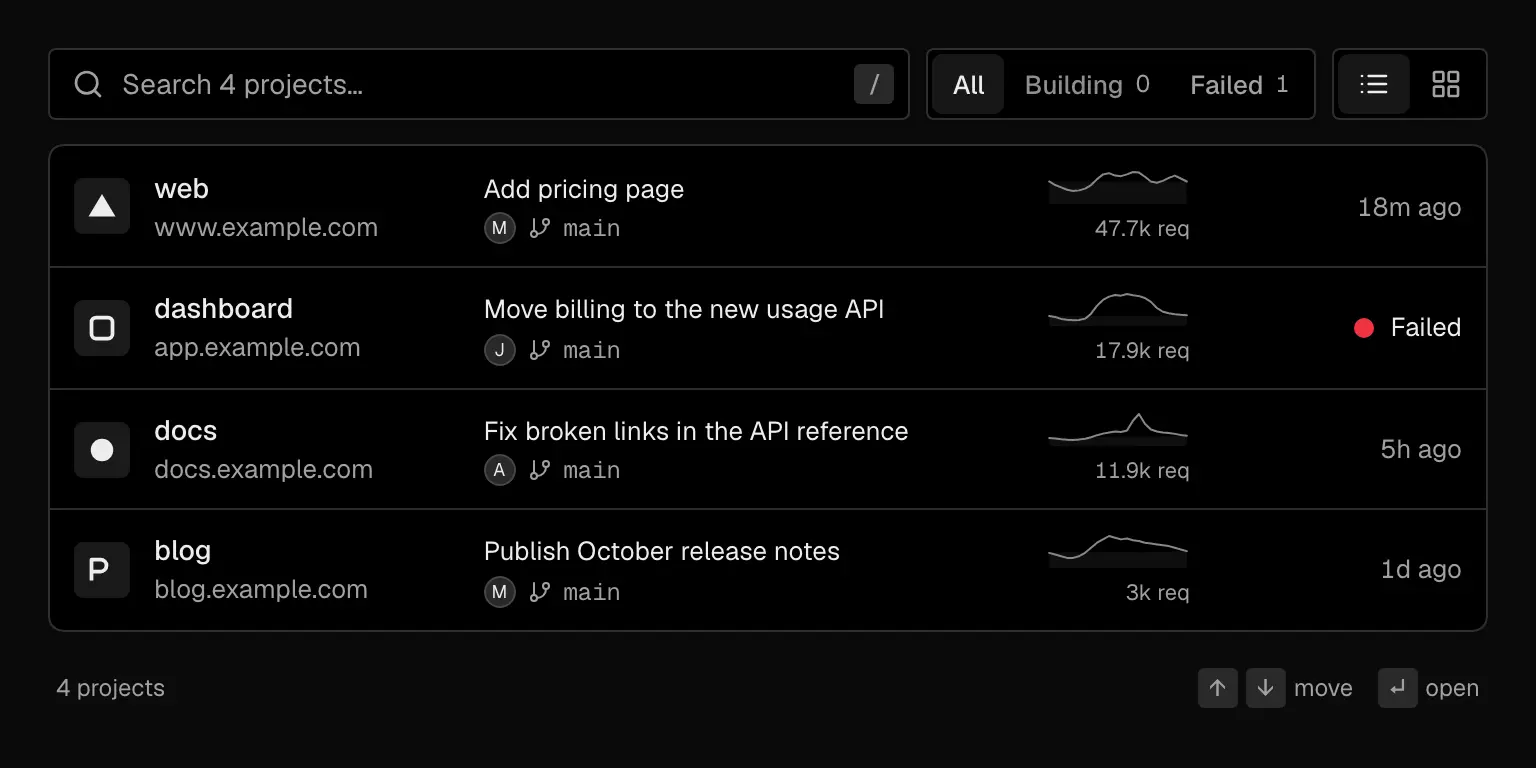
Every project shows its latest commit, 24 hours of traffic, and a status only when something’s wrong
Needs attention
Needs attention appears at the top when something across your projects needs you:
- Failed production deploys: the error summary and a note that each project still serves its previous deploy. Several failures roll up into one item with Redeploy all
- Domains not pointing to Easel: the DNS record to add, and Check again
- Usage at 80% or more: how much of your included usage a meter has used and when it resets, with View usage
Dismissed items stay hidden for you only, and you can restore them while the problem still exists.
Find and scan projects
Search by name, filter to Building or Failed, and switch between list and grid views. Press / to focus search, move with the arrow keys or j and k, and press Enter to open a project.
Each project shows its real domain, the first line of its latest commit with branch and author, and a sparkline of its last 24 hours of traffic. A status appears only when it isn’t Ready, so a failing or building project stands out.
Workspace rail
The side rail shows workspace traffic for the Last 24 hours, Usage for the current billing period, and recent Activity across projects. A new workspace with no projects shows the import step in place, so you can deploy your first project from there.
See Getting started to deploy your first project.