Add a custom domain
Add an apex domain or subdomain to a project, configure DNS, and get it live.
Add a custom domain to serve your project's production deployment at an address you control. The domain follows whichever Production deployment is Current; adding it doesn't trigger a build.
Before you begin
You need:
- A project with a Ready Production deployment
- An Owner or Admin role in the workspace, or permission to manage project settings
- Access to the domain's authoritative DNS provider
Your registrar and DNS provider may be different companies. Edit records wherever the domain's NS records point; changes at a registrar that doesn't host your DNS have no effect.
Add the domain
- Open Project settings → Domains. The Domains item in the project sidebar opens the same page.
- Select Add domain.
- Enter the hostname, such as
example.comordocs.example.com. Easel strips anyhttps://, path, or query you paste. Hostnames use ASCII letters, digits, and hyphens; Unicode (internationalized) input isn't accepted. For length limits, see Limits. - Under It should, choose Serve this project, or Redirect to create a redirect domain.
- Select Add.
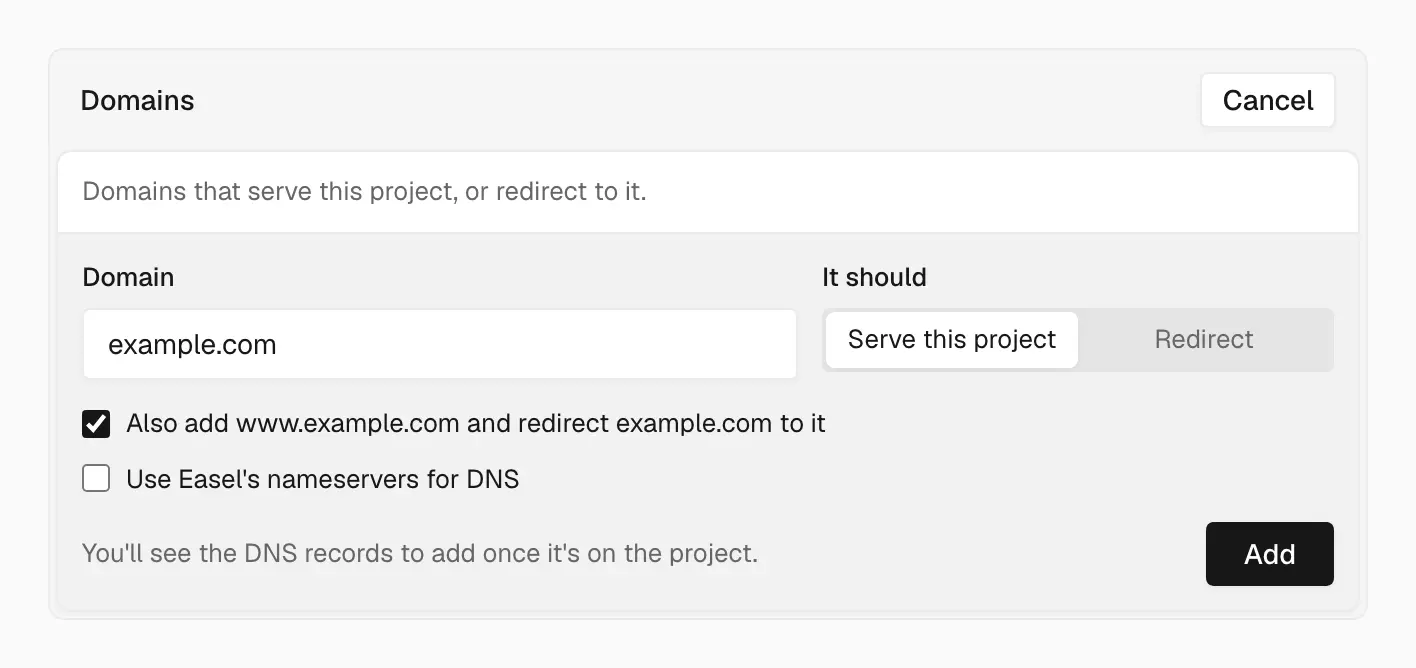
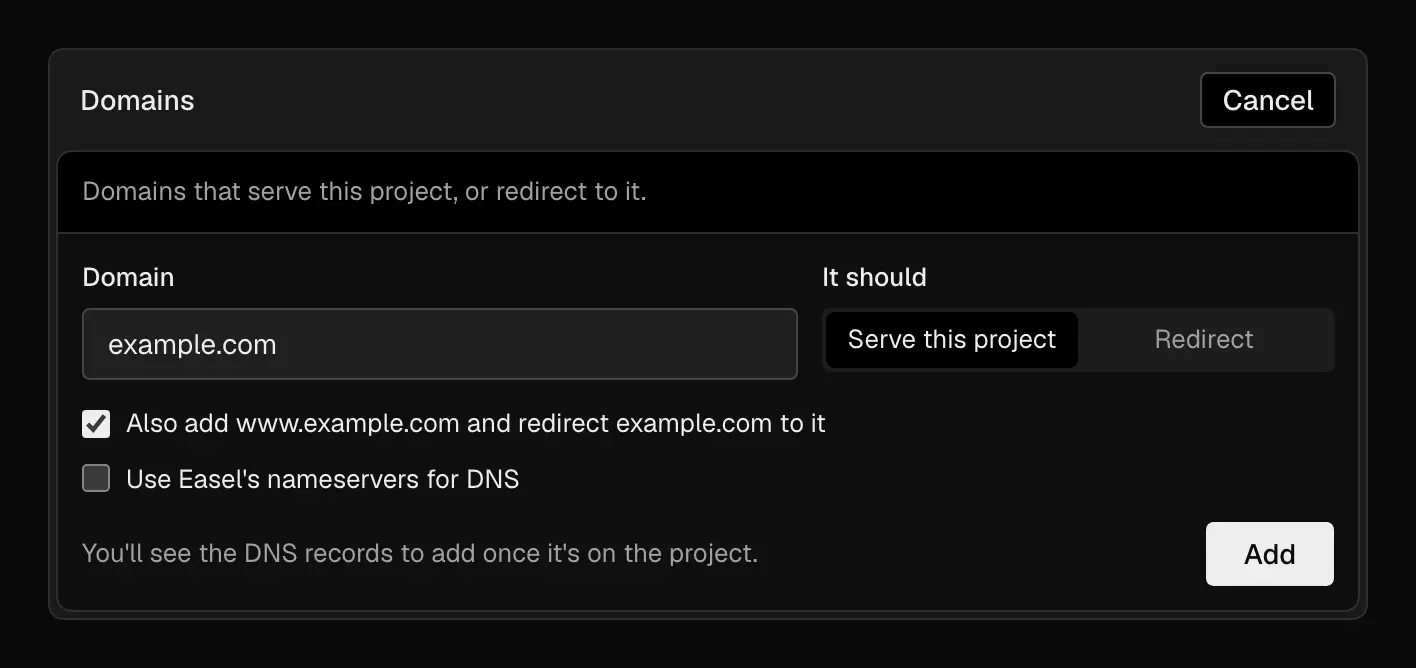
Adding an apex domain also adds www and redirects the apex to it
For an apex domain, the option to also add www is selected by default. Easel
then adds www to serve the site and makes the apex a 308 redirect to it.
Clear the option to serve the apex directly.
Each hostname can belong to only one project across Easel. If another workspace holds it, the dashboard shows the record that proves you control the domain instead of adding it. See Domain ownership.
Configure DNS
After you add the domain, its row shows the records to create. Copy the exact values from the dashboard; don't reuse values from another project.
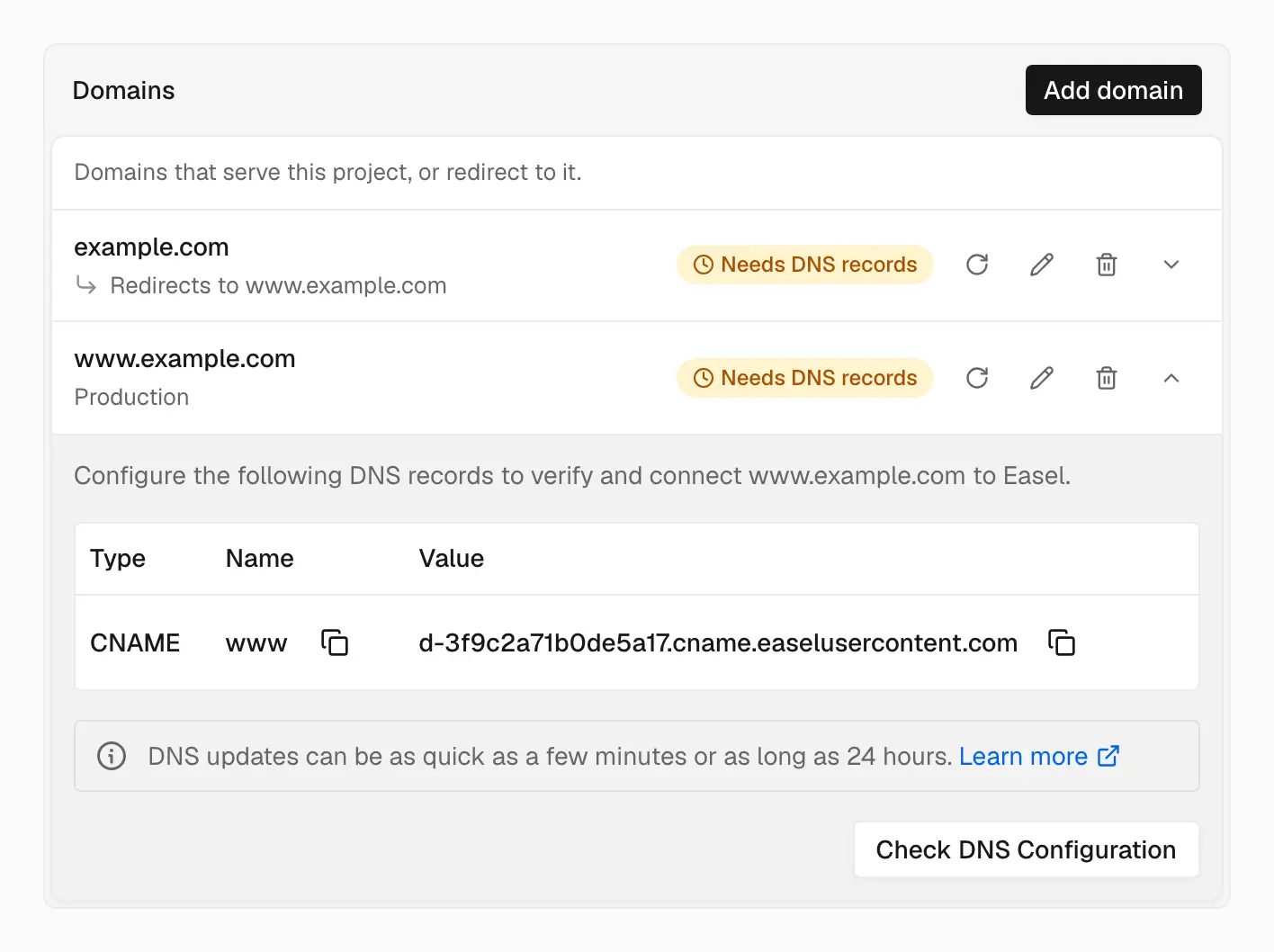
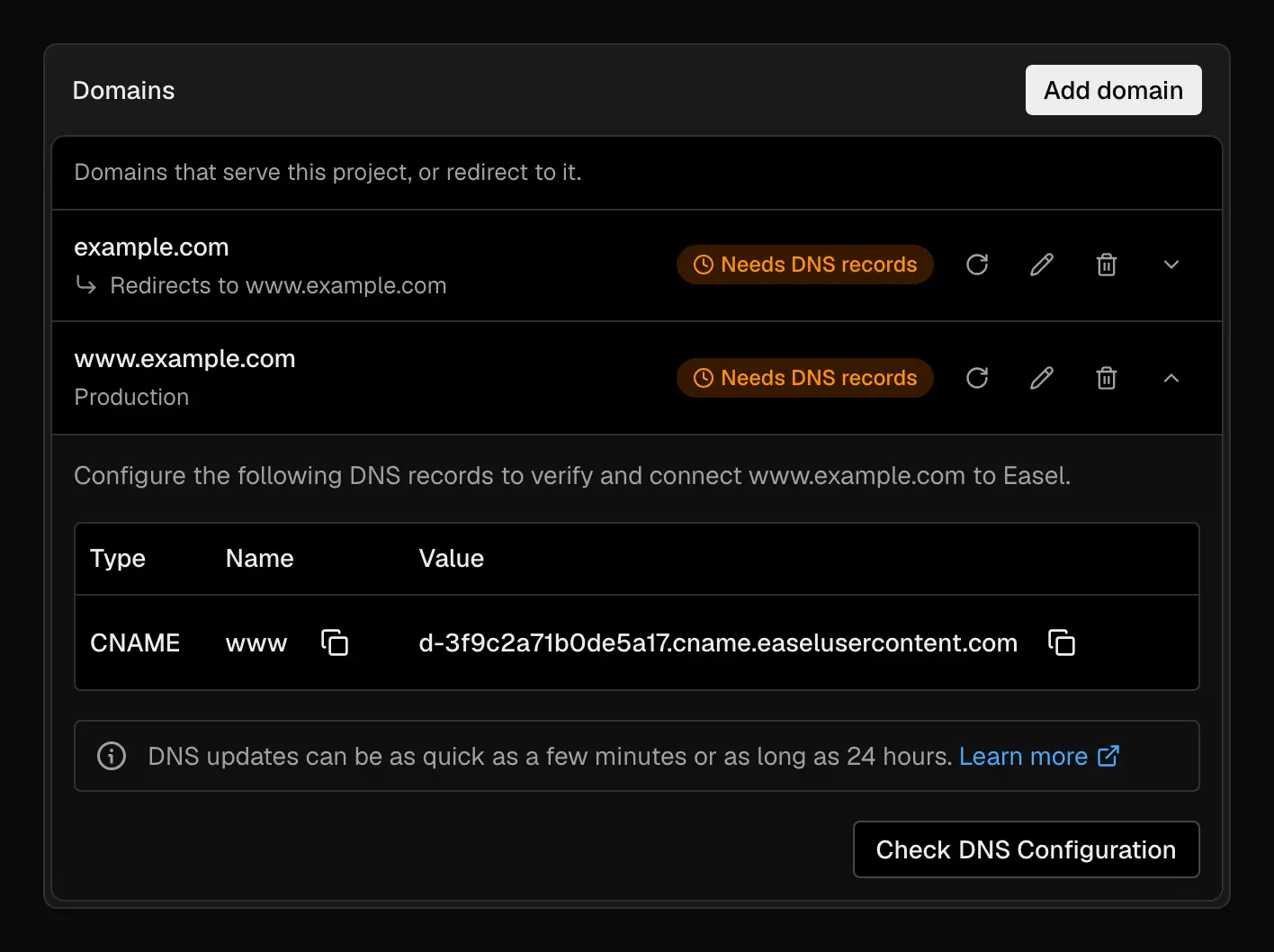
Each row shows the record to create at your DNS provider
You can keep DNS at your current provider (External DNS, the default) or let Easel host the zone (Easel DNS).
External DNS
| Hostname | Type | Name | Value |
|---|---|---|---|
Apex (example.com) | A | @ | Edge IP shown in the dashboard |
Subdomain (www.example.com) | CNAME | www | The domain's own target, shown in the dashboard |
- Apex: use an A record rather than ALIAS, ANAME, or CNAME flattening. Don't add an AAAA record unless the dashboard shows one; a stale AAAA record sends IPv6 visitors elsewhere.
- Subdomain: a CNAME can't share its exact name with other records, so
remove any A, AAAA, or CNAME already at that name. Each subdomain has its own
target, such as
d-3f9c2a71b0de5a17.cname.easelusercontent.com, which stays with it if you move it to another project. A CNAME to any other domain's target doesn't verify. See Each domain's CNAME target. - Name field: some providers want
www, others the full hostname. If yours appends the apex automatically, don't type it, or you'll getwww.example.com.example.com. - Proxies: keep the record DNS-only (in Cloudflare, the grey cloud) until the domain is Live. See DNS proxies.
Easel DNS
To let Easel host the zone, select Use Easel's nameservers for DNS when you add the domain, or add the apex under workspace Domains. Then:
- At your registrar, set the nameservers to
ns1.easel-dns.comandns2.easel-dns.com. - Select Check Nameservers until the zone shows Active.
- Easel creates A and AAAA records for each connected hostname. Manage other records, such as MX and TXT, in the zone's DNS records table. New records default to a TTL of 300 seconds.
Changing nameservers moves every record for the domain. Recreate your MX, SPF, DKIM, DMARC, and other verification records in Easel DNS before or right after you switch, or email stops working. If the domain uses DNSSEC, remove the old DS record at the registrar first; Easel DNS doesn't sign zones with DNSSEC.
Deleting an Easel DNS zone while the domain still uses Easel's nameservers takes the domain offline.
Keep your email records
Connecting a website only needs the A or CNAME record above. Leave MX, SPF, DKIM, DMARC, and other services' TXT records in place.
Verification
Easel verifies a domain by checking that its routing record points at Easel: the apex's A records include an Easel edge IP, or the subdomain's CNAME reaches its own target, directly or through other CNAMEs. A TXT record is only needed for an apex or zone another workspace holds; see Domain ownership.
A domain that hasn't verified within 7 days stops holding its name, so another workspace can add it without proof.
While Project settings → Domains is open, the dashboard rechecks domains that need DNS records or are issuing a certificate every 30 seconds. To check now, select the refresh button on the domain's row. Once DNS passes, Easel issues the certificate; see HTTPS and TLS.
DNS changes reach different networks at different times as cached answers expire. Passing verification means Easel sees the record, not that every visitor does yet.
Keep the record in place after the domain is live. If a later check finds it missing or pointing elsewhere, the domain returns to Needs DNS records and certificate renewal stops.
Domain statuses
Each domain's row shows one of five statuses.
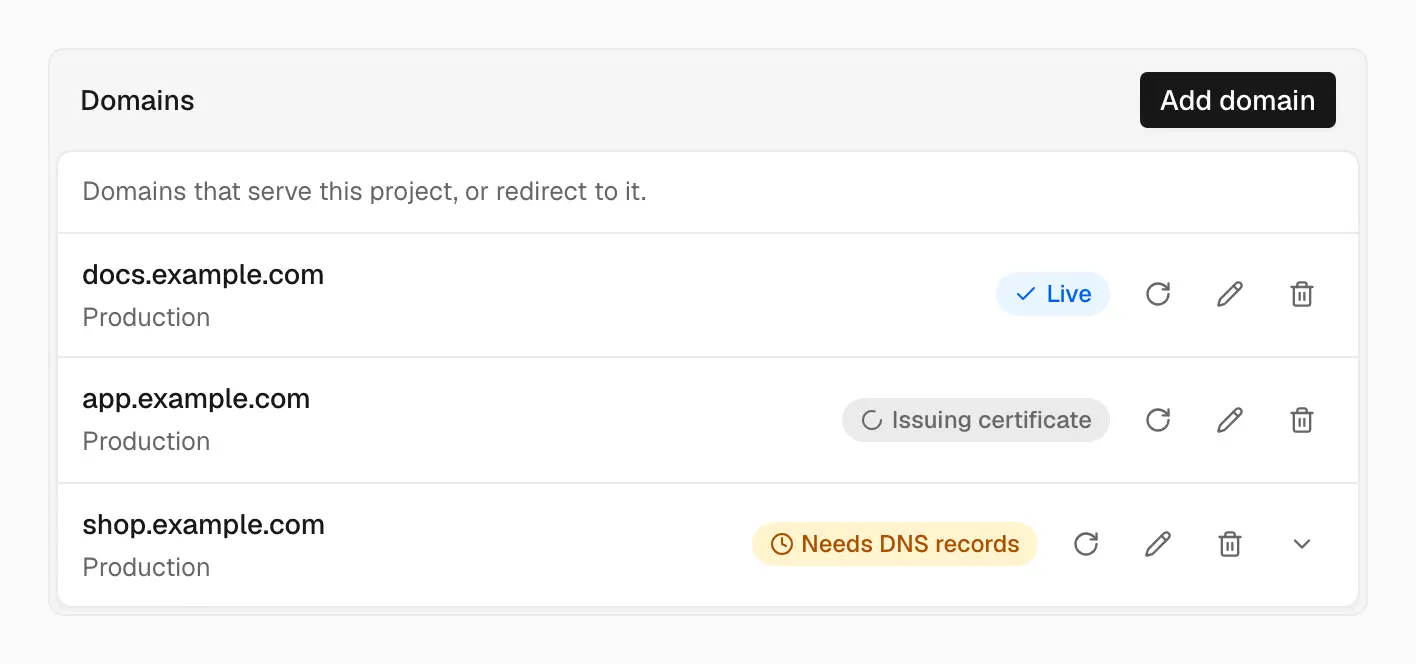
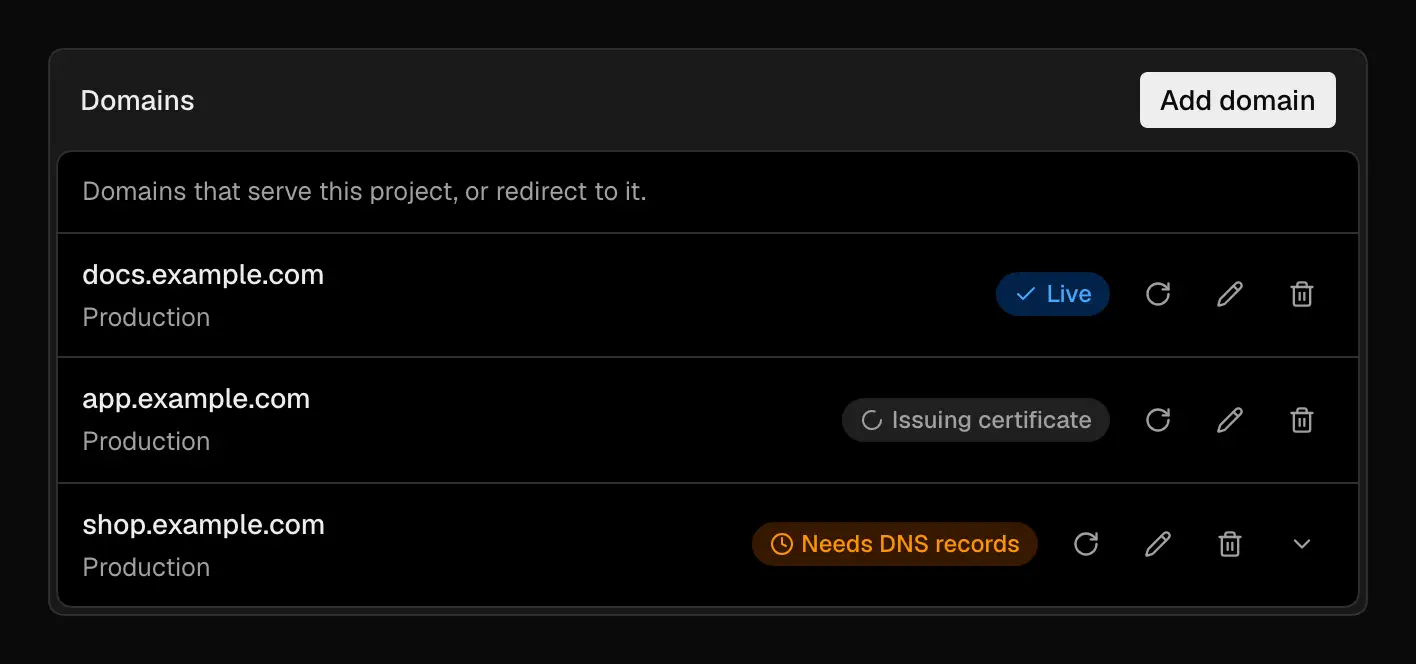
A domain's status shows where it is in setup
| Status | Meaning |
|---|---|
| Needs DNS records | The A or CNAME record is missing or doesn't match yet |
| Issuing certificate | DNS is verified and the certificate is being issued |
| Live | The domain serves traffic over HTTPS |
| Not resolving | Setup failed; the row shows the last error |
| Needs ownership proof | Another workspace holds the domain; the row shows the TXT record to add. See Domain ownership |
A removed domain disappears from the list. A Live domain still needs a Ready, Current Production deployment to serve your app.
Check your records
The dashboard is the source of truth. To compare from your machine:
If the domain stays stuck, see Troubleshooting.