Promote and roll back
Control which Production deployment serves your production domains, and switch back to a previous one without rebuilding.
Building a Production deployment and serving production traffic are separate steps. Promotion and rollback move your production domains between deployments that are already built, so the switch is instant.
You need the Owner or Admin role to promote or roll back. Both are blocked while the project is paused or the workspace is suspended.
Ready and Current
- Ready: the build succeeded and the deployment can serve traffic.
- Current: the Production deployment your production domains point to. There's one per project.
- Staged: a Ready Production deployment that's newer than Current but isn't serving production traffic yet.
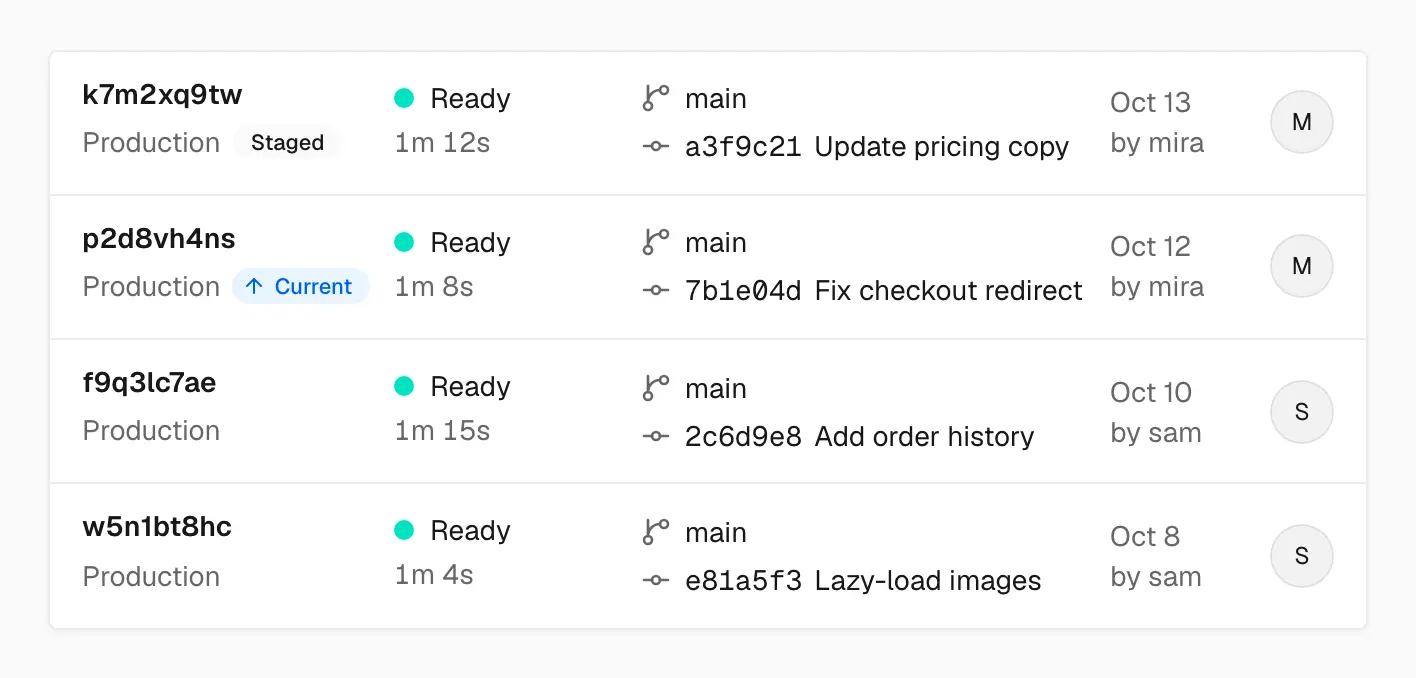
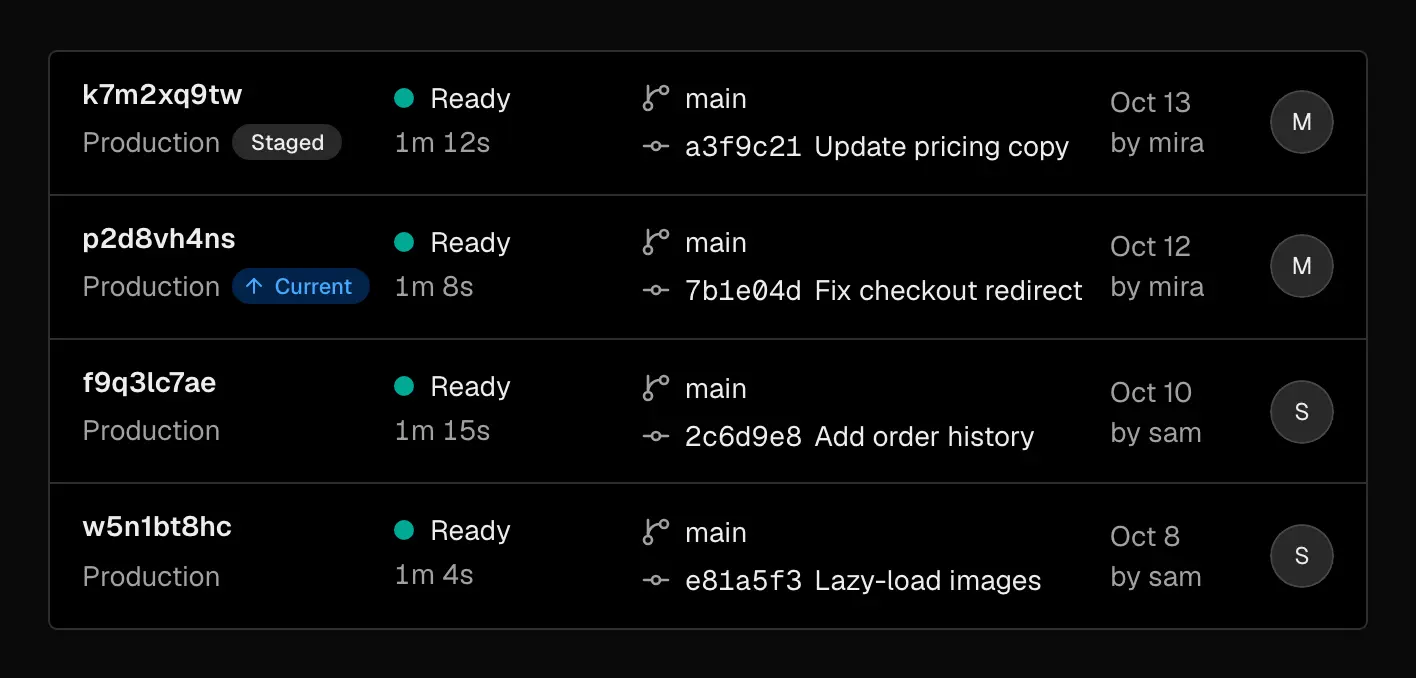
Every deployment here is Ready, but only the Current one serves your production domains
Older Ready Production deployments stay in your history so you can roll back to them.
How production releases happen
Pushes to your production branch, and easel deploy --prod, create Production
deployments built with Production environment variables. What happens when the
build is Ready depends on Promote production builds automatically, in
Project settings → Git (on by default):
- On: the new deployment becomes Current as soon as it's Ready. Traffic stays on the previous deployment while it builds, and if the build fails, nothing changes.
- Off: the deployment finishes as Staged and waits for you to promote it. Turn this off when you want to check each build before it goes live.
A rollback also turns automatic promotion off. See After a rollback.
Promote a deployment
Promote a staged Production deployment
- Open the deployment.
- Choose Promote to production, then confirm.
Your production domains point to it right away. Nothing is rebuilt. You can also hover a newer deployment in Production history on the project overview and choose Promote.
Promote a Preview deployment
Easel never serves a Preview build on production domains, because Preview and Production use different environment variables. Promoting a Preview deployment starts a new Production build of the same commit instead:
- Open a Ready Preview deployment.
- Choose Promote to production, then confirm.
- Wait for the new Production deployment to reach Ready.
The new build uses current Production environment variables and the Preview deployment's build settings. It goes live when Ready if automatic promotion is on. Otherwise it's Staged until you promote it.
From the CLI
The CLI doesn't promote or roll back. Use easel deploy --prod to create a
Production deployment, which follows the automatic promotion setting, and use
the dashboard to promote or roll back. See easel deploy.
Roll back
Rolling back points your production domains at an older Ready Production deployment without rebuilding it. Use it when a release is unhealthy and an earlier one is known to work.
From the dashboard, do one of these, then confirm:
- On the Current deployment, choose Instant rollback to return to the previous Production deployment.
- On any older Ready Production deployment, choose Roll back to this.
- In Production history on the project overview, hover an older deployment and choose Roll back.
Only Ready Production deployments older than Current are eligible. Spun-down and Preview deployments aren't.
After a rollback
Rolling back turns off automatic promotion, so the next push to your production branch doesn't overwrite the rollback. New pushes still build, but they finish as Staged.
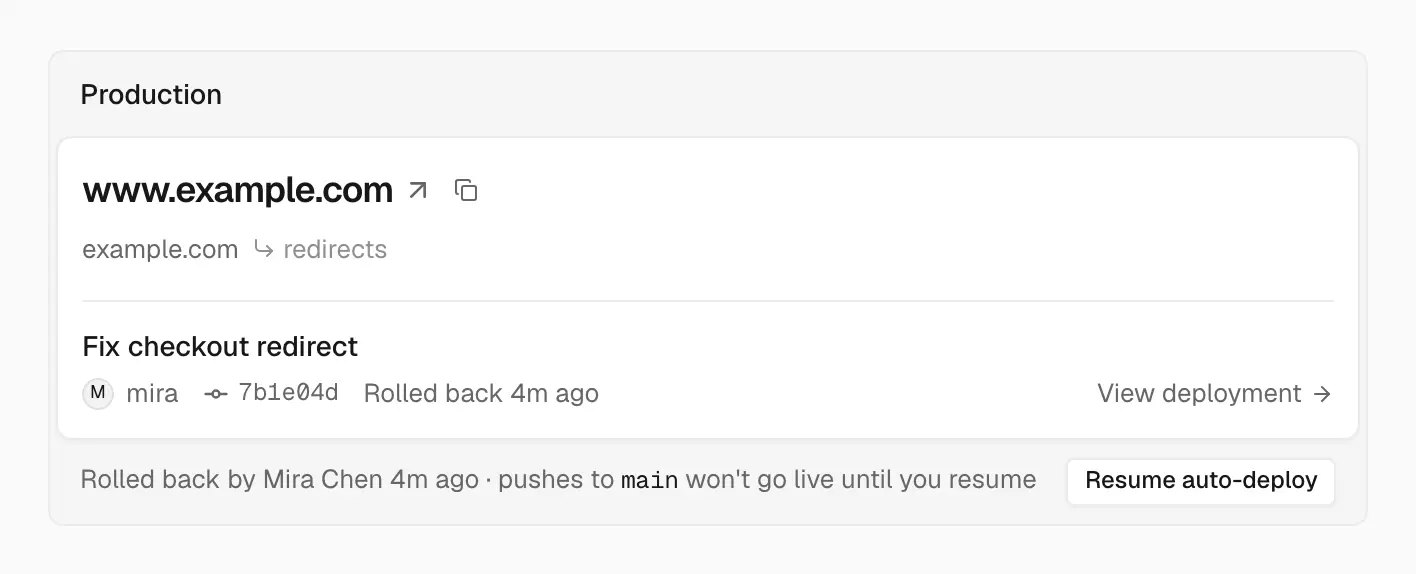
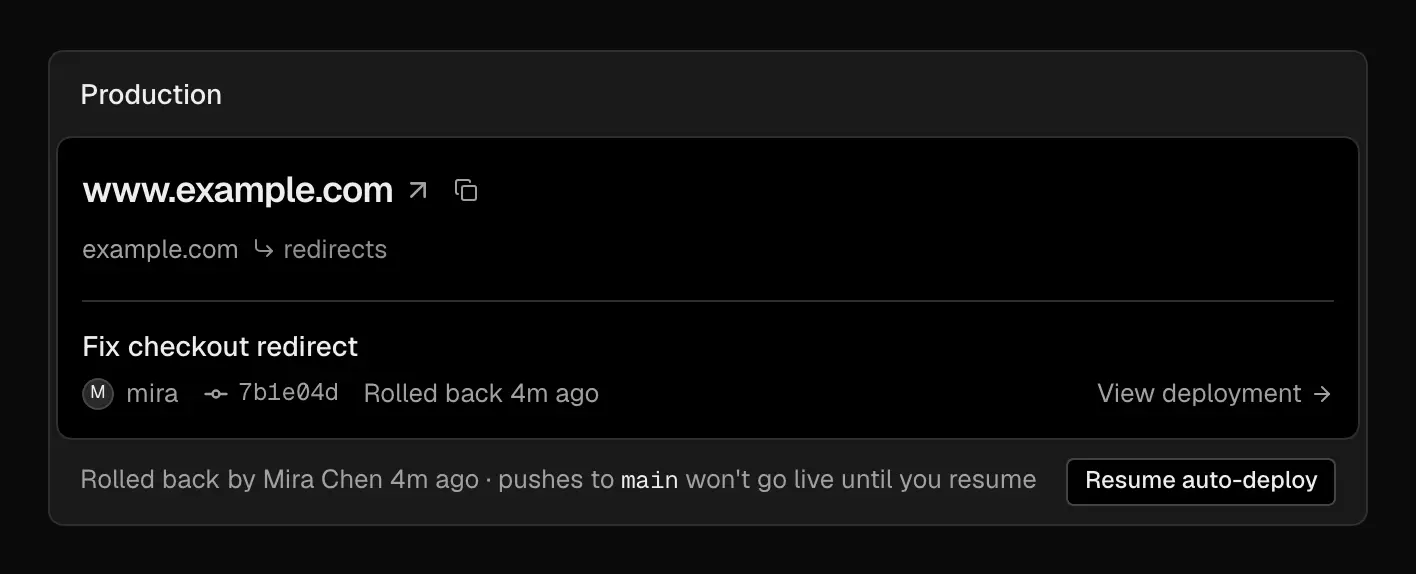
After a rollback, new pushes don't go live until you resume auto-deploy
To go back to normal releases, do one of these:
- Choose Resume auto-deploy on the project overview. The rolled-back deployment stays Current until your next production build is Ready.
- Promote a staged deployment, such as the one you rolled back from. This rolls forward without rebuilding and turns automatic promotion back on.
What changes and what doesn't
Promoting or rolling back changes only which deployment your production domain and custom domains point to. The deployment itself doesn't change:
- Environment variables: each deployment keeps the values it was built with. To pick up changed variables, create a new deployment. See Environment variables.
- Code, assets, functions, and routing: these come from the deployment, so a rollback restores all of them together.
- Cache: nothing is purged. ISR and CDN caches are scoped to each deployment, so traffic uses the cache of the deployment it now reaches. Runtime Cache is shared by deployments in the same environment, so the new deployment reads the same entries. To purge explicitly, use Purge cache. See Caching.
- External state: databases, queues, object storage, and third-party services don't roll back. Keep schema changes compatible with both the new and previous versions of your app so you can roll back safely.
Verify a release
- Before promoting, open the deployment's unique URL and check your critical paths. See Deployment URLs.
- After the switch, confirm your production domain serves the expected
deployment. The deployment page shows it as Current, and
easel inspect <deployment-id>lists your production domains under Aliases. - Watch requests, errors, and cache behavior in Observability, and roll back if they regress.